How to Export Your Transaction History from Trade Republic
Trade Republic added a transaction export in April 2026, a CSV of every booking on your account. Before that, a full history meant a stack of PDFs. It is the file to bring here. It is also one of only three files from which we record the dividends you received, with the tax the file states for each.
This guide covers that export from the Trade Republic app. It explains where to find it, how to check it, and what the import does with each kind of row.
Which Trade Republic file do you need?
You need the transaction export, as a CSV. It lists your whole account, one row per booking: trades, dividends, interest, card payments, deposits. The import reads the trades and the dividends and skips the rest.
Trade Republic offers other documents that sound close, and none of them imports:
- The account statement (Kontoauszug in German) is a PDF of your cash movements.
- The securities statement and the settlement document for each trade are PDFs too.
- The annual tax report and the crypto overview are for your tax return, not for a portfolio.
Step 1: Update the app
The export arrived with an app release in April 2026, and Trade Republic's own announcement told customers to update the app first. If the screen in step 2 offers only PDF statements, update and look again.
Step 2: Open the transaction export
Tap your profile, then Services, then the statements. Trade Republic's own video shows the route in the German app as Kontoauszüge, then Transaktionsexport. An app in another language uses its own words for the same steps.
Step 3: Choose a period that reaches your first purchase
Set the start before your first purchase, or as far back as the screen allows.
A file that starts later holds your recent sales and none of the purchases behind them. Nothing has to go wrong for this to happen. The file can import without a single error and still produce a cost basis that is wrong.
Step 4: Download the CSV and leave it as it is
Download the file and upload it exactly as it arrived. Opening it in a spreadsheet to look at it is fine. Saving it from there is the risk.
The export writes numbers with a full stop as the decimal point, as in 199.38, and dates as year, month and day, as in 2026-08-16. A spreadsheet set to Dutch or German can save the numbers with a decimal comma instead, and the import cannot read those correctly.
Check you got the right file
Open the file in a preview, or in a text editor you close without saving. The first line holds the column names, often each in double quotes. The import reads them in English, as Trade Republic writes them. It starts with datetime, date, account_type, category, type, asset_class, name, symbol, shares and price. Further along come amount, fee, tax, currency and transaction_id, among others. In the rows below, a purchase reads TRADING in the category column and BUY in the type column, and a dividend reads CASH and DIVIDEND. The symbol column holds each security's ISIN (the international code that identifies it on any exchange).
If a column the import needs is missing, it stops before booking anything, with a message such as: "Trade Republic parser: column 'transaction_id' not found. Please verify this is a Trade Republic transaction export." The column named changes with what is missing. Go back to the export rather than adding a column by hand.
Step 5: Drop it into DividendAtlas
Open the import panel and drag the file onto it, or click to pick it from your downloads folder. We recognise a Trade Republic export from its columns, so with those intact there is no broker to choose and no columns to match. A file that has lost several of them falls back to the general CSV route, which guesses the columns and can get them wrong, so export it again instead.
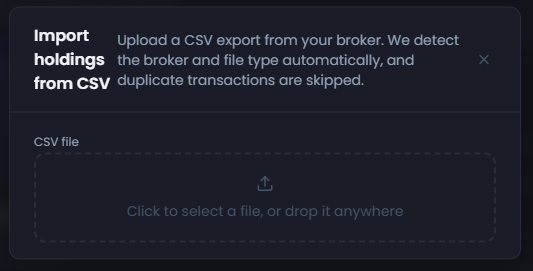
Each row of the export normally carries its own transaction ID. A trade whose ID is already in this portfolio is skipped, and a trade with an empty ID is matched on its details instead. A dividend is skipped only when its ID and its amounts both match, so one that Trade Republic restated with new amounts is recorded again. After an upload that overlaps an earlier one, check how many trades the result says it skipped as already imported, and look over the newest dividends.
What does the import bring in, and what does it leave out?
Trades. Every row of category TRADING and type BUY or SELL becomes a purchase or a sale, with its date, quantity, price per share and currency, matched by its ISIN. A row can still be rejected, for example when its date cannot be read, or stay unmatched when we cannot place the security. A savings plan execution should arrive as a purchase like any other, so check one month of them after your first import. A fraction of a share keeps every decimal place the file gives. The order fee sits in a column of its own, and it is not added to the price, so a holding's cost here can differ from the one Trade Republic shows.
Dividends. A row of category CASH and type DIVIDEND becomes a payment received when we can read it. The file gives the amount credited and the tax withheld, and we record the gross as the two added together. A row with an empty tax cell, or a file with no tax column, is recorded with no tax. A dividend row is skipped without a message when its ISIN or date cannot be read, or when the amount credited is not above zero. Trade Republic, DeGiro's Dutch-language account statement and Lightyear are the three sources we read payments from today.
What you get from the payments depends on how you use the portfolio. If you turn on net dividends, we can suggest the rate withheld from each holding, measured from what Trade Republic actually deducted. For a resident of Germany the deduction also holds German tax, so we do not suggest it as the foreign rate: we calculate the two layers ourselves. For a resident of Germany, a fund's payouts stay at their gross amount unless you enter a rate yourself, because the German tax on a fund depends on details we do not hold. The difference between a payment and our own dividend data is explained in how to check a dividend figure.
Each holding the import matches also shows the dividend history and forward income we hold for it. It shows its Dividend Health Score too, where we publish one.
The import leaves out five kinds of row:
- Distributions. Some fund payouts are labelled DISTRIBUTION rather than DIVIDEND. We do not record those as payments yet.
- Cancellations, tax recalculations and capital gains distributions. When Trade Republic cancels a dividend or recalculates its tax, it writes a further row. We skip those rows, so the payment stays recorded as it was first booked. A row described as a capital gains distribution is skipped too.
- Shares delivered without a price, such as a transfer from another broker or shares you received for free. The result names each holding affected and says the movement was not imported.
- Everything else in cash: deposits, withdrawals, interest, card payments and Saveback credits.
- Any other row, which is anything that is not a trade, a dividend or a delivery. It is skipped without a message. If Trade Republic books a split or a merger that way, your share count changes without the result saying so.
What if the result does not look right?
- The file is refused outright. It is a PDF statement, not the transaction export. Go back to step 2.
- Sales with no matching purchases. Usually the period started too late, so export again from before your first purchase. Shares that arrived by transfer cause it too, because they are not booked.
- A holding shows the wrong number of shares. Look in the import result for a delivery on that holding, and add those shares by hand. If nothing is listed, check whether the company split its shares or merged, because such a row can be skipped without a message.
- A dividend payment looks too large, or appears twice. Trade Republic may have cancelled or corrected it later. Compare it with the payment in the app.
- Some rows were not imported. The import result says how many and why. A security we cannot match is listed there rather than guessed.
Using other brokers too? Where to find your transaction history names the file to take from each broker we import. The guides for DeGiro, Trading 212, Interactive Brokers, Saxo, Lightyear, Revolut and Nordnet cover theirs step by step.
Frequently asked questions
- Does Trade Republic have a CSV export?
- Yes. Trade Republic added a transaction export in April 2026. In the German app it sits under your profile, then Services, then Kontoauszüge, as Transaktionsexport. If you only see PDF statements there, update the app and look again.
- Are my savings plan purchases imported?
- They should be. Every row the export marks as a purchase comes in with your other buys, and a savings plan execution is a purchase. After your first import, check one month of executions against the result. A purchase of part of a share keeps every decimal place the file gives.
- Will the import record the dividends Trade Republic paid me?
- Yes, for the dividend rows we can read. Each becomes a payment received, with its gross amount and the tax the row states. A row with an empty tax cell is recorded with no tax. Rows labelled as a distribution rather than a dividend are not recorded yet, and a dividend Trade Republic later cancelled can still be recorded at its first amount.
- Can I upload two exports that overlap?
- Usually, if both go into the same portfolio. A trade whose transaction ID is already there is skipped, and a dividend is skipped when its ID and amounts both match. A dividend Trade Republic restated with new amounts is recorded a second time. Check the counts afterwards, and keep the files as they downloaded.
- What happens to shares I transferred in from another broker?
- They arrive in the export without a price, so we cannot book them as a purchase. The import result names each holding they affect. If you want them in this portfolio, add the original purchases by hand, with their original dates, quantities and prices where you have them, and check they are not already here from another broker's file.
DividendAtlas provides data and research for informational purposes only. Nothing here is investment advice, tax advice or a recommendation to buy or sell any security. Always do your own research.