How to Export Your Transaction History from Interactive Brokers
Interactive Brokers offers more reports than most brokers, and the one to bring here is the plainest: the standard Activity Statement, downloaded as a CSV. It holds your trades, a code that identifies each security, and any shares you moved in from another broker.
This guide covers that statement for one account at a time, with English or Dutch headings. Flex Queries are not covered here. If you normally work with them, run the Activity Statement for this import instead.
Which IBKR file do you need?
You need the Activity Statement as a CSV. It is not one table but a stack of sections, and the import reads three of them:
- Trades has one row per order in the standard statement, with its date, quantity, price and currency. A negative quantity is a sale.
- Financial Instrument Information usually gives each security's ISIN (the international code that identifies it on any exchange). That is what we match on. Where a security has no ISIN there, we match on its ticker symbol alone, which can leave a row unmatched.
- Transfers records shares that moved in or out without a trade.
Interactive Brokers offers other files that sound close:
- A statement over a period with no trades lists your open positions and nothing else. We can import it as a holdings snapshot, at IBKR's average cost for each position, but with no individual purchases behind it.
- The Trade Confirmation Report is a separate report, laid out differently. Use the Activity Statement.
- PDF and HTML statements are for reading, not importing. Choose CSV.
Step 1: Open Statements
Sign in to the Client Portal and open Performance & Reports, then Statements. The same screen is also under the menu at the top left, in Reporting.
If you manage more than one account, pick one in the Account Selector first.
Step 2: Run the Activity Statement
Press the blue Run arrow to the right of the Activity Statement. IBKR then asks for a period, a format and a few options.
Step 3: Choose a period that reaches your first trade
IBKR offers Daily, Monthly, Annually, Year to Date and Custom Date Range. Choose Custom Date Range and set the start before your first trade.
This is the step that quietly breaks an import. A statement that starts after your purchases gives you the sales and none of the buys behind them. Nothing has to go wrong for this to happen. The file can import without a single error and still produce a cost basis that is wrong.
If IBKR will not run the whole range in one statement, run one Annually statement for each year and a Year to Date statement for this one. Upload them one at a time into the same portfolio.
The statement gives a trade no reference number of its own. So we recognise a trade already imported by its details: the date, security, direction, quantity, price and currency. That handles a few overlapping days between statements. It cannot tell two identical orders from one order seen twice, so check the counts afterwards. The import result says how many trades it skipped as already imported.
Step 4: Keep it to one account, in English, as a CSV
Three options on the same screen matter:
- Multi-Account Format appears when you manage several accounts. Run one statement per account instead. We import a file as one portfolio, so a combined statement merges the accounts into one.
- Language, under Advanced Options, sets the section and column names. Choose English. We also read Dutch, but no other language yet.
- Format: choose CSV, then Download.
Use the standard Activity Statement rather than a custom statement with extra trade detail. The import reads every stock row in the Trades section as a trade. In the standard statement each of those rows is an order, while a statement set to show closed lots adds rows for shares it already lists.
Step 5: Keep the file exactly as it downloaded
Opening the CSV in a spreadsheet to look at it is fine. Saving it from there is the risk.
The statement writes large quantities with a comma, as in 1,000 shares. A spreadsheet set to a European locale can read that comma as a decimal point and save the quantity as 1. Upload the file IBKR gave you, untouched.
Check you got the right one
Open the file in a preview, or in a text editor you close without saving. An English Activity Statement starts with these two lines:
Statement,Header,Field Name,Field Value
Statement,Data,Title,Activity Statement
In a Dutch statement the first line reads Veldnaam and Veldwaarde instead, and the title is Activiteitenoverzicht.
Further down, look for lines that begin with Trades,Header and Trades,Data (Transacties in Dutch). If there are none, the period you chose usually held no trades. Go back to step 3 and start it earlier.
You may also have a file from IBKR's Transaction History page, with a name such as U1234567.TRANSACTIONS.1Y.csv. It imports too. It carries no ISIN, so we have only the ticker symbol to match on, and it is worth checking the result for rows we could not place.
Step 6: Drop it into DividendAtlas
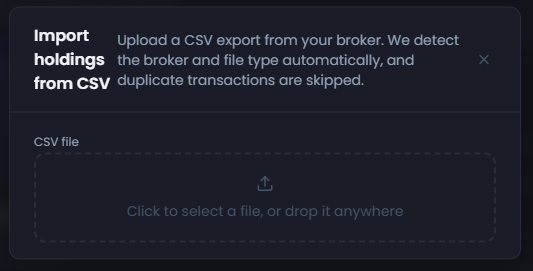
Open the import panel and drag the file onto it, or click to pick it from your downloads folder. We recognise an IBKR statement from its contents, so you should not need to choose a broker or match columns. A trade that matches one already in this portfolio is skipped, as step 3 explains.
What does the import bring in, and what does it leave out?
It brings in every stock purchase and sale in the Trades section, each with its date, quantity, trade price and currency. A row can still be rejected, for example when its date cannot be read. It can also stay unmatched when we cannot tell which security it is.
The price we book is the trade price. Commissions are not added to it, so a holding's cost here can differ from the cost basis IBKR shows for it.
Shares you moved in from another broker are booked as a purchase on the day they arrived, not on the day you first bought them. The statement gives a transfer no price, so the one we book is an approximation. We use IBKR's average cost for the position while you still hold it, else the cost IBKR recorded when you sold the shares, else their market value on the day of the transfer. None of these is necessarily what you originally paid. Shares moved out are booked as a sale at their market value.
Each holding the import matches then shows the dividend history and forward income we hold for it. It also shows its Dividend Health Score where we publish one, and some stocks have no score for reasons that post explains.
The import leaves out five kinds of row:
- Dividends and withholding tax. The statement lists both, but for IBKR we do not yet record them as payments received.
- Forex, options and futures. They share the Trades section with stocks, and we skip them rather than book them as shares.
- Corporate actions, such as mergers and spin-offs. They sit in a section of their own, which the import does not read.
- Deposits, withdrawals, interest and fees. They change your cash balance, not your shares.
- The account itself. A statement covering several accounts arrives as one portfolio, with no record of which account held what.
What if the result does not look right?
- Sales with no matching purchases. Usually the period started too late, so run the statement again from before your first trade. Check the other causes too: shares that arrived through a corporate action, which the import does not read, or purchase rows the import could not match, which the result lists.
- The import says the statement has no Trades section. Usually the period held no trades, only open positions. Run it over a longer period, or import that statement as a holdings snapshot instead.
- No trades were imported from a file that has them. Check the statement's language. Run it again in English if it is in anything other than English or Dutch.
- A holding shows more shares than you own. Look for a transfer in from another broker whose history is also in this portfolio. Compare the dates and quantities of the two purchases first. Remove the transfer only when it repeats shares the other broker's history already holds.
- Some rows were not imported. The import result says how many and why. Do not edit the file to swap an unfamiliar symbol for a ticker you guessed, because a wrong match is worse than a missing one.
Using other brokers too? Where to find your transaction history names the file to take from each broker we import. The guides for DeGiro, Trading 212, Saxo, Trade Republic, Lightyear, Revolut and Nordnet cover theirs step by step. New to this? Start with a beginner's guide to dividend investing in Europe.
Frequently asked questions
- Where is the transaction export in Interactive Brokers?
- In the Client Portal, open Performance & Reports, then Statements. Press the blue Run arrow beside the Activity Statement, choose a period that starts before your first trade, select CSV as the format and download the file.
- Should I use a Flex Query or the Activity Statement?
- Use the Activity Statement for this import. It needs no setup, it usually lists each security's ISIN, and it records the shares you moved in from another broker. It is also the file this guide covers step by step.
- Can I export several years at once?
- Try a custom date range from before your first trade to today. If IBKR will not run the whole range, run one statement per year and upload each one into the same portfolio. A trade that matches one already imported is skipped, so check the counts afterwards.
- Will the import record the dividends IBKR paid me?
- Not today. The Activity Statement lists dividends and withholding tax in sections of their own, but for IBKR we do not yet record them as payments received. Each matched holding still shows whatever dividend history and forward income we hold for that security.
- What happens to shares I transferred in from another broker?
- They are booked as a purchase on the day they arrived, at an approximate cost taken from the statement, not at what you first paid. If that broker's history is also in this portfolio, the same shares can appear twice. Compare the dates and quantities of the two purchases before you remove either.
DividendAtlas provides data and research for informational purposes only. Nothing here is investment advice, tax advice or a recommendation to buy or sell any security. Always do your own research.