How to Export Your Transaction History from DeGiro
DeGiro can hand you several different files, and only one of them carries your buying history. Pick the wrong one and the import still works, and your cost basis is quietly missing.
This guide gets you the right file, over the right date range. It takes about two minutes.
The file you want, and the one sitting next to it
The Transactions report is every buy and every sell, each with its date, its quantity and the price you paid. That is the file to upload. It is what produces a real cost basis, a yield on cost, and a record of the dividends you have already collected.
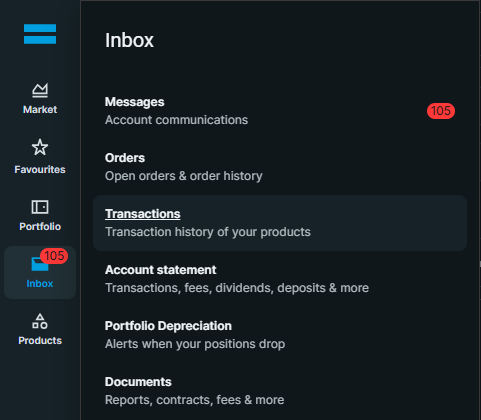
Account statement sits directly below it in the same menu and sounds more complete, because it adds fees, dividends, deposits and withdrawals. It is a cash ledger rather than a trade ledger, so it does not carry the per-trade quantity and price columns the import reads. Take Transactions.
The Portfolio page has an export of its own. That one is a snapshot of what you hold right now. It imports, but there is no purchase history behind it.
Step 1: Open Inbox, then Transactions
Sign in to DeGiro on a desktop browser. Inbox is in the left-hand rail, below Portfolio. The panel that opens lists Messages, Orders, Transactions, Account statement and more.
Choose Transactions, the one described as your transaction history.
Step 2: Set the start date back before your first trade
This is the step almost everyone misses, and it is the reason this guide exists.
The range defaults to about a month. Export it as it stands and you get a file holding your latest sales and none of the purchases behind them. Nothing errors. The file parses perfectly and the numbers it produces are wrong.
Start date and End date sit above the table. Set the start date comfortably before your first trade. If you cannot remember when you opened the account, 01/01/2010 covers almost everyone. An export that starts too early costs you nothing. One that starts too late costs you your cost basis.

Step 3: Press the download icon
The download icon is the blue downward arrow above the table, on the right.

Step 4: Choose CSV
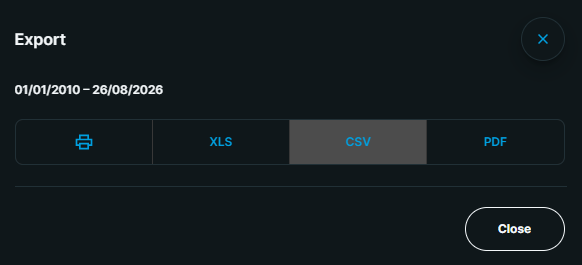
The Export dialog confirms your date range and offers print, XLS, CSV and PDF. Choose CSV. The file lands in your downloads folder.
Step 5: Drop it into DividendAtlas
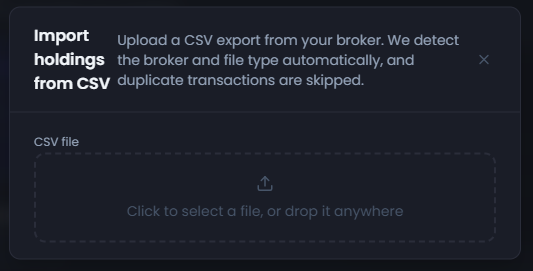
Open the import panel and drag the file onto it, or click to pick it out of your downloads folder. There is no broker to choose and no columns to match. We read the file, work out which broker and which report it is, and skip anything you have already imported.
Check you got the right one
If you want to be sure before you upload, open the file in any text editor, or in your file browser's preview panel. The first line tells you which report you have.
The Transactions export leads with a date and a time. In a Dutch account it looks like this:
Datum,Tijd,Product,ISIN,Beurs,Uitvoeringsplaats,Aantal,Koers,...
The column order is the same in every language, so in an English account the first two headings read Date and Time instead. Look for the same shape: a date, a time, a product name, an ISIN, a quantity, a price, and an Order ID column near the end. That is the file you want.
The account statement has a description and a running balance where the quantity and price should be. The portfolio export has no date column at all. If you see either, go back to step 1.
We check the same thing on upload and tell you which file you have handed us, so a mistake here costs you one re-export rather than a wrong portfolio.
What happens once you upload it
Every row is matched on its ISIN, so the import works whatever language your export is in. Each holding it finds picks up its dividend history, its forward income, and its Dividend Health Score.
New to this and want the wider picture first? Start with a beginner's guide to dividend investing in Europe. If you would rather know what the score is actually measuring before you trust it, read how a dividend health score is calculated.
Frequently asked questions
- Where is the transaction export in DeGiro?
- Sign in on a desktop browser and open Inbox in the left-hand rail, then choose Transactions. Set the start date back before your first trade, press the download icon above the table on the right, and choose CSV in the Export dialog.
- Why does my import show sales with no matching purchases?
- Almost always because the export date range was too short. DeGiro defaults the range to a recent window, so the file contains your latest sales while the purchases behind them sit outside the window. Re-export with the from date set back to the day you opened the account.
- Should I export Transactions or the Account statement?
- Transactions. The account statement sits directly below it in the same Inbox menu and covers more ground, adding fees, dividends, deposits and withdrawals, but it is a cash ledger. It carries a description and a running balance where the transactions report carries a quantity and a price, and those are the columns the import reads.
- Does it matter that my DeGiro export is in Dutch?
- No. The column order is the same whatever language your account is set to, and every row carries an ISIN, which identifies the security internationally. A Dutch, German, English or Portuguese export all import the same way.
- Can I import a PDF account statement from DeGiro instead?
- Not today. Choose CSV in the export dialog rather than PDF. A PDF statement carries the same information, but it is laid out for reading rather than for parsing, so there is nothing reliable to import from it.
DividendAtlas provides data and research for informational purposes only. Nothing here is investment advice or a recommendation to buy or sell any security. Always do your own research.