How to Export Your Transaction History from Nordnet
Nordnet's transaction list holds every purchase, sale, dividend and deposit on your account, and it exports as a CSV. That is the file to bring here. Nordnet writes it with Norwegian column names, a decimal comma and, usually, the day first, and the import reads it in that form.
This guide covers Nordnet's Norwegian site. Exports from Nordnet in Sweden, Denmark and Finland are not supported yet, and should not be imported. It explains where to find the export, how to check it, and which of its many columns we read for each trade.
Which Nordnet file do you need?
You need the transaction export from the Transaksjoner page, as a CSV. It lists every movement on the account: purchases, sales, dividends, deposits, interest and fees. The import reads the trades and the dividends and skips the rest.
Nordnet offers other documents that sound close, and none of them is a trade history:
- The account statement (kontoutdrag), downloaded from the same page, is a report for reading.
- The portfolio report and the realisation overview (porteføljerapport and realisasjonsoversikt) summarise your holdings and gains.
- Contract notes (sluttsedler) are one document per trade.
- The holdings list shows what you own today, with no dates, so it holds none of your history.
Step 1: Open the transactions
Nordnet's help gives the route as Mine sider, then Kontooversikt, then Transaksjoner. Some guides name the page Transaksjoner og sluttsedler, which is the same list.
Then pick the account whose trades belong in this portfolio. We import a file into the one portfolio you choose, so accounts exported together end up merged in it. If you want an aksjesparekonto and an ordinary account kept apart, export each one on its own.
Step 2: Set the dates
Set Fra dato before your first purchase and Til dato to today.
A file that starts later holds your recent sales and none of the purchases behind them. Nothing has to go wrong for this to happen. The file can import without a single error and still produce a cost basis that is wrong. If the page will not reach that far back in one export, export the years in parts and upload each into the same portfolio, oldest first.
Step 3: Export the CSV and leave it as it is
Nordnet's help does not describe a CSV export. Guides from other portfolio trackers describe an export button on the Transaksjoner page, and we have not confirmed that button or its label. The Kontoutdrag button, which Nordnet's help places at the top right above the list, downloads the account statement instead, which is not this file.
If what you download ends in .xlsx, the import screen suggests saving it as CSV from a spreadsheet. For this file that puts the decimal commas and the dates at risk, as the next paragraph explains, so look for a CSV export instead.
Upload the file exactly as it downloaded. Opening it in a spreadsheet to look at it is fine. Saving it from there is the risk. Nordnet writes numbers with a decimal comma, as in 9,6456, and usually writes dates with the day first, as in 27/07/2026. A spreadsheet set to English can misread the comma and swap the day and the month. When the day is 12 or lower, a swapped date still looks valid, so we cannot catch it.
Check you got the right file
Open the file in a preview, or in a text editor you close without saving. The first line holds the column names, about thirty of them: Bokføringsdag, Handelsdag, Transaksjonstype, Verdipapir, ISIN, Antall, Kurs and more, sometimes after a first column called Id. The column Valuta appears several times, once after each amount.
In the rows below, a purchase reads KJØPT in the Transaksjonstype column, and a dividend reads UTBYTTE.
These are the columns we read:
| Column | What we read from it |
|---|---|
| Handelsdag | The trade date |
| Bokføringsdag | The booking date, used only when a row has no Handelsdag |
| Transaksjonstype | Whether the row is a purchase, a sale or a dividend |
| ISIN | The code we match the security on |
| Antall | The number of shares |
| Kurs | The price per share |
| Valuta | The currency, from the one after the purchase value |
| Id or Sluttseddelnummer | Nordnet's reference for the trade |
If one of Bokføringsdag, Transaksjonstype, ISIN, Antall or Kurs is missing, the import stops before booking anything, with a message such as: "Nordnet parser: column 'Kurs' not found. Please verify this is a valid Nordnet transaction export (Transaksjoner og sluttsedler)." Go back to the export rather than adding a column by hand.
Step 4: Drop it into DividendAtlas
Open the import panel and drag the file onto it, or click to pick it from your downloads folder. We recognise a Nordnet export from its Norwegian column names, so with those intact you should not need to choose a broker or match columns.
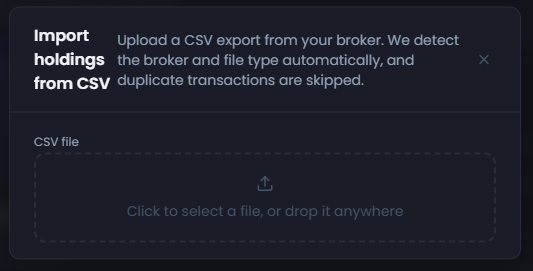
A trade whose reference is already in this portfolio is skipped. We take that reference from the Id column, or from the contract note number (Sluttseddelnummer) when the file has no Id column. A row with neither is matched on its details instead: the date, security, direction, quantity, price and currency. References are compared with earlier uploads only, so every row within one file is booked. Nordnet's export has come in both layouts. So if you upload a file in one layout over a file in the other, the same trade arrives with a different reference and is booked twice. After an upload that overlaps an earlier one, check how many trades the result says it skipped as already imported.
Which date, which currency, which direction?
Nordnet's export carries more than one answer to each of these questions, and the obvious column is not always the right one.
The date. Each row has a trade date (Handelsdag), a booking date (Bokføringsdag) and a settlement date (Oppgjørsdag). They often differ, and a cost basis belongs to the day you traded. So we book each trade on its Handelsdag.
The currency. Valuta appears after each amount column, and the first one belongs to the fees, in your account's currency. A US share bought from a Norwegian account would read as kroner there. We take the currency from the Valuta after the purchase value (Kjøpsverdi), or after the result (Resultat) on a sale, which is the share's own. A file stripped of every Valuta column is read as Norwegian kroner, which is one more reason to keep every column.
The direction. Nordnet writes the quantity of a sale as a positive number, exactly like a purchase. We take the direction from Transaksjonstype alone. Reading it from the sign of the quantity would turn every sale into a purchase.
What does the import bring in, and what does it leave out?
Trades. Every purchase and sale becomes a trade with its date, quantity, price per share and currency, matched by its ISIN. Fractional quantities written with a decimal comma keep their decimal places. The brokerage (Kurtasje) and the other fees are not added to the price, so a holding's cost here can differ from the one Nordnet shows.
If Nordnet cancelled a trade, the export may still list it, with a date in the Makuleringsdato column. The import does not read that column yet, so a cancelled trade can be booked as a real one.
Dividends. A row of type UTBYTTE appears in the holding's list of transactions, marked as a dividend. It does not change your share count. Its amount and tax are not recorded as a payment received, as they are from Trade Republic, Lightyear and DeGiro's Dutch-language account statement.
Each holding the import matches also shows the dividend history and forward income we hold for it. It shows its Dividend Health Score too, where we publish one.
The import leaves out three kinds of row:
- Cash movements: deposits, withdrawals, interest and fees, all skipped without a message.
- Most other rows, including corporate events such as a merger and shares moved in from another broker. They are skipped without a message, so your share count can change without the result saying so.
- Trades without an ISIN. The row is rejected with: "Row has no ISIN, so the holding could not be identified. Row skipped."
What if the result does not look right?
- The file is refused outright. It is a PDF, such as the account statement or a contract note. Go back to step 3.
- The import says "We do not recognise this broker". The file is not the Norwegian export, or columns were removed. Do not import it that way, because the currency and the dates can come out wrong. Export it again from Nordnet's Norwegian site.
- A trade you know was cancelled appears. Look for a date in its Makuleringsdato column, and delete the trade here.
- Sales with no matching purchases. Usually Fra dato was too late, so export again from before your first purchase. Shares moved in from another broker cause it too, because they are not booked.
- A holding shows the wrong number of shares. Check whether the company split its shares or merged, and whether some shares arrived by transfer. Then compare the quantity we show with Nordnet's.
- A holding is in the wrong currency. The Valuta columns may have been removed or emptied, so export the file again and upload it untouched. A row with neither a purchase value nor a result takes the currency of the amount booked, which is your account's, so check such a trade and correct it by hand if needed.
- A trade appears twice. The two files you uploaded were in different layouts. Delete the copies, and from then on export the whole period in one file.
- Some rows were not imported. The import result says how many and why.
Using other brokers too? Where to find your transaction history names the file to take from each broker we import. The guides for DeGiro, Trading 212, Interactive Brokers, Saxo, Trade Republic, Lightyear and Revolut cover theirs step by step.
Frequently asked questions
- Where is the transaction export in Nordnet?
- Nordnet's help gives the route as Mine sider, then Kontooversikt, then Transaksjoner, where you set Fra dato and Til dato. That help describes a Kontoutdrag button there but no CSV export. Guides from other portfolio trackers describe an export button on the same page, which we have not confirmed.
- Does the import read Nordnet's Swedish, Danish or Finnish exports?
- Not yet, so please do not import one. We read the export from Nordnet's Norwegian site, with column names such as Bokføringsdag, Transaksjonstype, Antall and Kurs. An export from Sweden, Denmark or Finland is not recognised as Nordnet's, and the general CSV route can still read it with the wrong currency and the wrong date.
- Will the import record the dividends Nordnet paid me?
- Not as payments received. Dividend rows appear in the holding's list of transactions, marked as dividends, and they do not change your share count. Their amount and tax are not recorded as a payment. Each matched holding still shows the dividend history and forward income we hold for it.
- Which date does each trade get?
- Its trade date, from the Handelsdag column. Nordnet also gives a booking date and a settlement date, and the trade date is the one a cost basis belongs to. We fall back to the booking date only when a row has no trade date.
- Can I upload two exports that overlap?
- Usually, if both go into the same portfolio. A trade whose Nordnet reference is already there is skipped, and a row without a reference is matched on its details instead. Nordnet's export comes in two layouts that give the same trade different references, so check the counts afterwards, and keep the files as they downloaded.
DividendAtlas provides data and research for informational purposes only. Nothing here is investment advice, tax advice or a recommendation to buy or sell any security. Always do your own research.